用 JavaScript 编写 WinForms 桌面应用
发布于: 3/21/2026 | 作者: DevScholar
用 JavaScript 编写 WinForms 桌面应用
Windows Forms(简称 WinForms)是微软在 .NET Framework 1.0 时代就推出的桌面 UI 框架,它封装了 Win32 API,让开发者可以用相对简单的方式创建 Windows 原生应用程序。传统上,WinForms 开发需要使用 C# 或 VB.NET,但现在通过 Node PS1 for .NET 这个库,JavaScript 开发者也能直接调用 WinForms 的全部 API。
Node PS1 for .NET 的工作原理是利用 Windows 系统内置的 PowerShell 5.1 作为桥梁,通过 IPC(进程间通信)让 JavaScript 运行时与 .NET 运行时交互。这样做的好处是不需要在应用安装包中捆绑完整的 .NET 运行时,因为 Windows 10/11 已经预装了 .NET Framework 4.5+ 和 PowerShell 5.1,应用体积可以保持很小。而且由于使用的是 IPC 而非 C++ Addon,这个库不仅支持 Node.js,也支持 Deno 和 Bun。
要开始使用,首先需要安装依赖。在项目目录下运行 npm install @devscholar/node-ps1-dotnet 或者使用你喜欢的包管理器。然后创建一个 TypeScript 文件,导入 dotnet 对象,加载必要的程序集。WinForms 相关的类型分布在 System.Windows.Forms 和 System.Drawing 两个程序集中,前者包含窗体和控件,后者包含字体、颜色、坐标点等辅助类型。
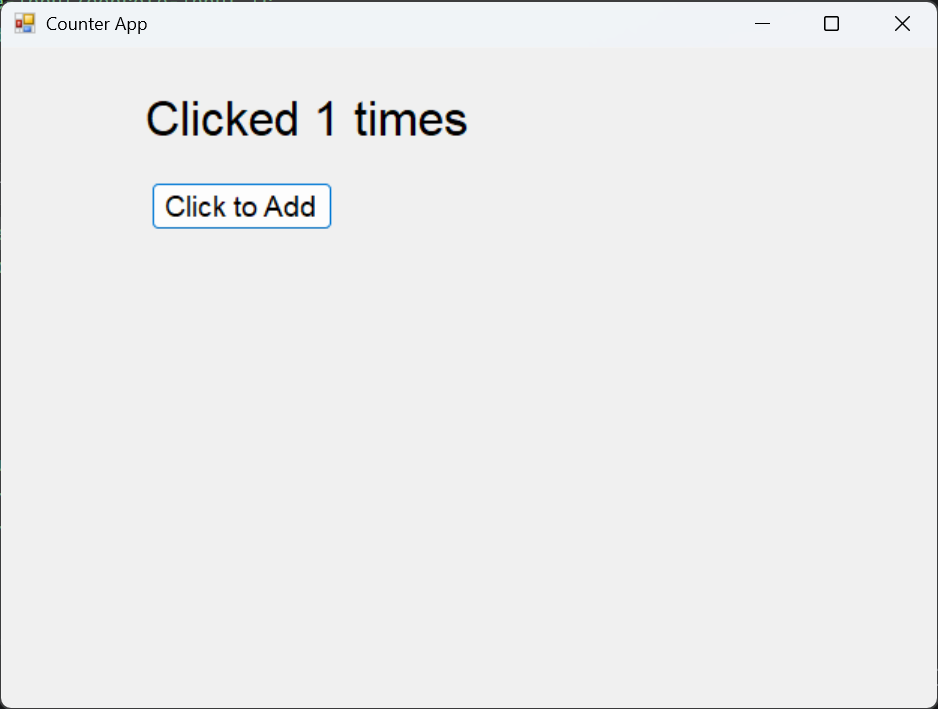
下面是一个最简单的计数器示例。代码首先调用 dotnet.load 加载两个程序集,然后通过 dotnet.System.Windows.Forms 访问 Forms 命名空间下的类型。Application.EnableVisualStyles() 和 Application.SetCompatibleTextRenderingDefault(false) 是 WinForms 应用的标准初始化代码,前者启用 XP 及以后版本的视觉样式,后者确保文本渲染的一致性。
创建窗体很简单,new Forms.Form() 就能得到一个空白窗口,然后设置 Text、Width、Height 等属性。StartPosition 设为 1 表示居中显示,这是 FormStartPosition 枚举的 CenterScreen 值。添加控件的方式是创建控件实例,设置属性,然后调用 form.Controls.Add() 把控件加入窗体的控件集合中。
import dotnet from '@devscholar/node-ps1-dotnet';

dotnet.load('System.Windows.Forms');
dotnet.load('System.Drawing');

const System = dotnet.System as any;
const Forms = System.Windows.Forms;
const Drawing = System.Drawing;

let clickCount = 0;

Forms.Application.EnableVisualStyles();
Forms.Application.SetCompatibleTextRenderingDefault(false);

const form = new Forms.Form();
form.Text = "Counter App";
form.Width = 640;
form.Height = 480;
form.StartPosition = 1;

const label = new Forms.Label();
label.Text = "Clicks: 0";
label.Font = new Drawing.Font("Arial", 24);
label.AutoSize = true;
label.Location = new Drawing.Point(90, 30);
form.Controls.Add(label);

const button = new Forms.Button();
button.Text = "Click to Add";
button.Font = new Drawing.Font("Arial", 14);
button.AutoSize = true;
button.Location = new Drawing.Point(100, 90);

button.add_Click(() => {
    clickCount++;
    label.Text = `Clicked ${clickCount} times`;
});

form.Controls.Add(button);

Forms.Application.Run(form);
事件处理使用 add_事件名 方法,比如按钮的点击事件就是 add_Click,传入一个回调函数。回调函数里可以更新其他控件的状态,比如修改 Label 的 Text 属性来显示点击次数。最后调用 Forms.Application.Run(form) 启动消息循环,窗口就会显示出来并响应用户操作。
再来看一个稍微复杂点的例子,实现一个可拖动的方块。这个例子涉及到鼠标事件的组合使用,MouseDown 记录拖动起始位置,MouseUp 结束拖动,MouseMove 时如果处于拖动状态就更新控件位置。注意这里用到了 Panel 控件,它是一个容器控件,这里我们把它当作一个可移动的色块使用,通过设置 BackColor 属性改变背景色。
import dotnet from '@devscholar/node-ps1-dotnet';

dotnet.load('System.Windows.Forms');
dotnet.load('System.Drawing');

const System = dotnet.System as any;
const Forms = System.Windows.Forms;
const Drawing = System.Drawing;

Forms.Application.EnableVisualStyles();
Forms.Application.SetCompatibleTextRenderingDefault(false);

const form = new Forms.Form();
form.Text = "Draggable Box Example";
form.Width = 800;
form.Height = 600;
form.StartPosition = 1;

const box = new Forms.Panel();
box.BackColor = Drawing.Color.Red;
box.Width = 100;
box.Height = 100;

let currentX = 350;
let currentY = 250;
box.Location = new Drawing.Point(currentX, currentY);

form.Controls.Add(box);

let isDragging = false;
let startDragOffsetX = 0;
let startDragOffsetY = 0;

box.add_MouseDown((sender: any, e: any) => {
    isDragging = true;
    startDragOffsetX = e.X;
    startDragOffsetY = e.Y;
    box.BackColor = Drawing.Color.DarkRed;
});

box.add_MouseUp((sender: any, e: any) => {
    isDragging = false;
    box.BackColor = Drawing.Color.Red;
});

box.add_MouseMove((sender: any, e: any) => {
    if (isDragging) {
        currentX = currentX + e.X - startDragOffsetX;
        currentY = currentY + e.Y - startDragOffsetY;
        box.Left = currentX;
        box.Top = currentY;
    }
});

Forms.Application.Run(form);
鼠标事件回调的第二个参数 e 是 MouseEventArgs 类型,包含鼠标相对于控件的坐标 X 和 Y。拖动时需要计算偏移量,因为 MouseMove 给出的是鼠标在控件内的相对位置,而不是窗体内的绝对位置。通过 e.X - startDragOffsetX 可以算出本次移动的横向偏移,累加到 currentX 上,再赋值给 box.Left 就实现了平滑拖动。颜色变化是为了提供视觉反馈,按下时变深色,松开后恢复。
运行这些示例的方法是执行 node start.js your-file.ts,其中 start.js 是 node-ps1-dotnet 提供的启动脚本,它会处理 TypeScript 编译和运行时初始化。如果使用 Deno 或 Bun,启动方式类似,具体可以参考项目文档。
这种方案的优势在于应用体积小、启动快、内存占用低,因为不需要在安装包中捆绑 Chromium 和完整的 .NET 运行时。缺点是目前只支持 Windows 平台,而且 WinForms 本身是较为老旧的 UI 框架,不支持现代的动画、透明效果等特性。如果需要更现代的界面,可以考虑使用 WPF(Windows Presentation Foundation),它同样可以通过 Node PS1 for .NET 调用,或者使用 node-with-window 这个上层封装,它提供了类似 Electron 的 API,底层使用 WPF 和 WebView2。
总的来说,Node PS1 for .NET 为 JavaScript 开发者提供了一条低成本进入 Windows 原生开发的路径。如果你熟悉 Web 开发但偶尔需要写一些 Windows 小工具,或者想用 JavaScript 调用 .NET 的丰富类库,这个库值得一试。更多示例可以参考 node-ps1-dotnet-examples 仓库。