Building Desktop Apps with JavaScript and WebView2
Published: 3/21/2026 | Author: DevScholar
Building Desktop Apps with JavaScript and WebView2
WebView2 is an embedded browser control launched by Microsoft, based on the Chromium kernel, which can be embedded into desktop application frameworks like WinForms, WPF, and WinUI. Unlike Electron, WebView2 uses the system-installed Edge browser runtime, without needing to bundle a complete Chromium in each application installer, so the application size can be small. Through Node PS1 for .NET, we can create WPF windows and embed WebView2 controls in JavaScript, building interfaces with familiar HTML, CSS, and JavaScript while retaining the ability to call native APIs.
WebView2 requires additional DLL files that are not in .NET Framework and need to be downloaded separately. The node-ps1-dotnet-examples project provides a webview2-install.js script to automatically download these dependencies. After running node scripts/webview2-install.js install, the DLLs will be downloaded to the runtimes/webview2 directory. When the program starts, it needs to load two DLLs: Microsoft.Web.WebView2.Core.dll contains core functionality, and Microsoft.Web.WebView2.Wpf.dll contains the WPF control wrapper.
Loading DLLs uses the System.Reflection.Assembly.LoadFrom method, which is .NET’s dynamic loading mechanism. After loading, get the WebView2 type through reflection and create an instance. The WebView2 control needs some initialization configuration, mainly setting the user data directory, which is where WebView2 stores cache, cookies, localStorage, and other data. Each application should use an independent data directory, usually placed in a temporary folder, which can be cleaned up when the program exits.
import dotnet from '@devscholar/node-ps1-dotnet';
import * as fs from 'node:fs';
import * as path from 'node:path';
import * as os from 'node:os';

const webview2LibPath = '/path/to/webview2/libs';
const coreDllPath = path.join(webview2LibPath, 'Microsoft.Web.WebView2.Core.dll');
const wpfDllPath = path.join(webview2LibPath, 'Microsoft.Web.WebView2.Wpf.dll');

const System = dotnet.System as any;
const Windows = System.Windows;
const Controls = System.Windows.Controls;

System.Reflection.Assembly.LoadFrom(coreDllPath);
System.Reflection.Assembly.LoadFrom(wpfDllPath);

const WebView2WpfAssembly = System.Reflection.Assembly.LoadFrom(wpfDllPath);
const WebView2Type = WebView2WpfAssembly.GetType('Microsoft.Web.WebView2.Wpf.WebView2');
const webView = new WebView2Type();

const CreationPropertiesType = WebView2WpfAssembly.GetType('Microsoft.Web.WebView2.Wpf.CoreWebView2CreationProperties');
const props = new CreationPropertiesType();
props.UserDataFolder = fs.mkdtempSync(path.join(os.tmpdir(), 'webview2-'));
webView.CreationProperties = props;

const browserWindow = new Windows.Window();
browserWindow.Title = 'WebView2 App';
browserWindow.Width = 800;
browserWindow.Height = 600;
browserWindow.WindowStartupLocation = Windows.WindowStartupLocation.CenterScreen;

const grid = new Controls.Grid();
browserWindow.Content = grid;
grid.Children.Add(webView);

const htmlPath = path.resolve('./index.html');
webView.Source = new System.Uri(htmlPath);

const app = new Windows.Application();
app.Run(browserWindow);
WebView2’s Source property accepts a URI, which can be a local file path or a network address. After setting Source, the control automatically loads the page. When the page finishes loading, the NavigationCompleted event is triggered, and you can perform subsequent operations in the callback.
WebView2 initialization is asynchronous. After setting CreationProperties and Source, the control creates the CoreWebView2 object in the background. When initialization completes, the CoreWebView2InitializationCompleted event is triggered, and only then can you access the CoreWebView2 property for advanced operations. CoreWebView2 provides rich APIs, such as executing JavaScript code, receiving web page messages, handling navigation events, etc.
Communication between web pages and native code is implemented through the WebMessage mechanism. The web page calls window.chrome.webview.postMessage(message) to send messages, and the native side receives them through CoreWebView2’s WebMessageReceived event. Conversely, the native side can send messages to the web page by calling CoreWebView2.ExecuteScript or PostWebMessage. The following code injects a script after WebView2 initialization completes, redirecting console.log to webview.postMessage, so the web page’s console.log output can be seen on the native side.
webView.add_CoreWebView2InitializationCompleted((sender: any, e: any) => {
    if (e.IsSuccess) {
        const coreWebView2 = webView.CoreWebView2;

        coreWebView2.add_WebMessageReceived((sender2: any, e2: any) => {
            const message = e2.TryGetWebMessageAsString();
            if (message) {
                console.log('[WebView2] ' + message);
            }
        });

        const script = `
            (function() {
                var originalLog = console.log;
                console.log = function(msg) {
                    originalLog(msg);
                    if (window.chrome && window.chrome.webview) {
                        window.chrome.webview.postMessage(msg);
                    }
                };
            })();
        `;
        coreWebView2.ExecuteJavaScript(script);
    }
});
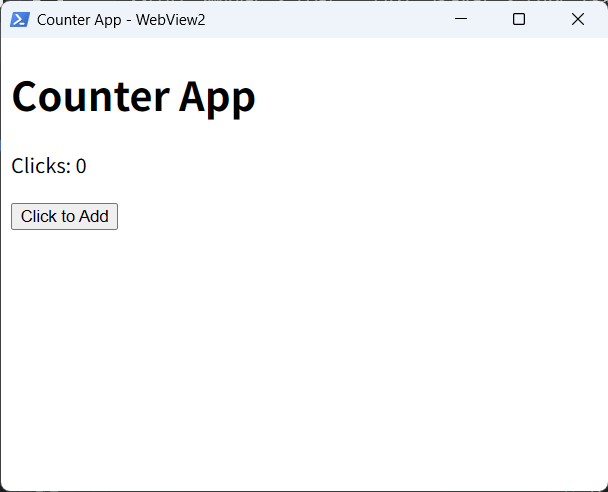
The web page code is just regular HTML and JavaScript, no special handling needed. Here’s a simple counter page that updates the display and notifies the native side via postMessage when the button is clicked.
<!DOCTYPE html>
<html>
<head>
    <title>Counter</title>
</head>
<body>
    <h1>Counter App</h1>
    <p id="display">Clicks: 0</p>
    <button id="btn">Click to Add</button>

    <script>
        let clickCount = 0;
        const display = document.getElementById('display');
        const button = document.getElementById('btn');

        button.addEventListener('click', function() {
            clickCount++;
            const message = 'Button clicked ' + clickCount + ' times';
            display.textContent = message;

            if (window.chrome && window.chrome.webview) {
                window.chrome.webview.postMessage(message);
            }
        });
    </script>
</body>
</html>
The benefit of this architecture is that the interface layer is developed entirely with web technology, utilizing mature frontend frameworks and toolchains, while the native layer provides system API access. Compared to Electron, the application installer size can be kept within a few MB because Chromium doesn’t need to be bundled. Compared to pure native development, interface development is more efficient, and web developers can get started directly.
Note the WebView2 runtime installation issue. New versions of Windows 10/11 come with WebView2 runtime pre-installed, but older Windows versions may require users to manually install it. Microsoft provides both online and offline installer distribution methods, and developers can choose based on their target user group. For enterprise internal applications, you can assume the runtime is installed or deploy uniformly through group policy. For public-facing applications, it’s recommended to check and prompt for runtime installation in the installer.
To run the example, first execute node scripts/webview2-install.js install to download dependencies, then execute node start.js your-file.ts to start the program. The complete example can be found in the wpf/webview2-browser directory of the node-ps1-dotnet-examples repository.