Writing GTK4 Desktop Apps with JavaScript
Published: 3/21/2026 | Author: DevScholar
Writing GTK4 Desktop Apps with JavaScript
GTK is the UI toolkit for the GNOME desktop environment, and GTK4 is the current latest version, widely adopted by mainstream Linux distributions like Fedora, Ubuntu, and Debian. Traditionally, GTK applications were written in C, Vala, or Python, but with the GJS (GNOME JavaScript) runtime, JavaScript developers can also directly call the full GTK API. The Node with GJS library brings GJS to the Node.js ecosystem, enabling Node.js, Deno, and Bun to interact with GJS through an IPC mechanism.
GJS is based on GObject Introspection technology, a mechanism for dynamically binding C libraries at runtime. GTK and its related libraries all provide GIR (GObject Introspection Repository) files that describe types, methods, signals, and other information. After reading these description files, GJS can call native APIs in JavaScript. Node with GJS implements communication between Node.js and GJS processes through Unix pipes, so no C++ extension compilation is needed, and compatibility is good.
Before using, make sure the system has GTK4 and GJS installed. GNOME-based distributions usually have these dependencies pre-installed. Ubuntu/Debian users can run apt install libgtk-4-1 gjs, Fedora users run dnf install gtk4 gjs, Arch users run pacman -S gtk4 gjs. After installation, you can install the node-with-gjs library through npm.
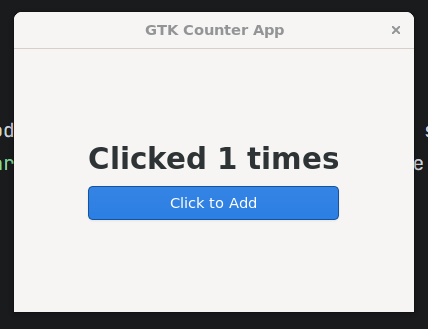
The entry point for GTK4 applications is the Gtk.Application class, which encapsulates application lifecycle, window management, menu integration, and other functions. When creating an Application instance, you need to provide a unique application_id, usually in reverse domain name format like org.gtk.counter. After the application starts, the activate signal is triggered, and you create windows and controls in the callback.
import Gtk from 'gi://Gtk?version=4.0';

let clickCount = 0;

const app = new Gtk.Application({ application_id: 'org.gtk.counter' });

app.connect('activate', () => {
    const window = new Gtk.ApplicationWindow({
        application: app,
        title: 'GTK Counter App',
        default_width: 400,
        default_height: 300
    });

    window.connect('close-request', () => {
        app.quit();
        return false;
    });

    const box = new Gtk.Box({
        orientation: Gtk.Orientation.VERTICAL,
        spacing: 10,
        halign: Gtk.Align.CENTER,
        valign: Gtk.Align.CENTER
    });
    box.set_margin_start(20);
    box.set_margin_end(20);
    box.set_margin_top(20);
    box.set_margin_bottom(20);

    const label = new Gtk.Label({
        label: 'Clicks: 0',
        css_classes: ['title-1']
    });

    const button = new Gtk.Button({
        label: 'Click to Add',
        css_classes: ['suggested-action']
    });

    button.connect('clicked', () => {
        clickCount++;
        label.set_label(`Clicked ${clickCount} times`);
    });

    box.append(label);
    box.append(button);

    window.set_child(box);
    window.present();
});

app.run([]);
The import statement import Gtk from 'gi://Gtk?version=4.0' is GJS-specific syntax, the gi:// prefix means loading from the GObject Introspection repository, and the version parameter specifies the version. GTK4’s layout system uses container controls, Gtk.Box is one of the most commonly used containers, with child controls arranged linearly in horizontal or vertical direction. The orientation property controls the arrangement direction, spacing controls the distance between child controls. halign and valign control how the control aligns within the allocated space.
GTK4 uses CSS for style customization, and the css_classes property can add CSS class names to controls. title-1 is GTK’s predefined large title style, suggested-action is the suggested action button style, usually displayed in blue. Custom styles can be loaded through Gtk.CssProvider loading external CSS files, or defined directly in code.
Event handling uses the connect method, with the first parameter being the signal name and the second being the callback function. The button’s click signal is called clicked, and the window’s close signal is called close-request. The close-request callback needs to return false to continue the close process, returning true will prevent closing. app.quit() is used to exit the application.
The window’s set_child method sets the content control, and the present method displays the window. Finally, call app.run([]) to start the application, the parameter is a command line argument array, an empty array means no extra parameters.
Let’s look at a draggable box example, which demonstrates the use of Gtk.Fixed container and event controllers. Fixed is the only container in GTK4 that supports absolute positioning, with child controls placed at specified coordinates through the put method, and position updated through the move method. GTK4’s event handling adopts an event controller pattern, GestureDrag is a controller specifically for handling drag gestures.
import Gtk from 'gi://Gtk?version=4.0';

const app = new Gtk.Application({ application_id: 'org.gtk.dragbox' });

app.connect('activate', () => {
    const window = new Gtk.ApplicationWindow({
        application: app,
        title: 'Drag Example',
        default_width: 600,
        default_height: 400
    });

    const fixed = new Gtk.Fixed();
    fixed.set_hexpand(true);
    fixed.set_vexpand(true);

    const squareSize = 80;
    const drawingArea = new Gtk.DrawingArea();
    drawingArea.set_size_request(squareSize, squareSize);

    const drawFunction = (area: any, cr: any, width: number, height: number) => {
        cr.setSourceRGB(1.0, 0.2, 0.2);
        cr.rectangle(0, 0, width, height);
        cr.fill();
    };

    drawingArea.set_draw_func(drawFunction);

    let currentX = 260;
    let currentY = 160;
    fixed.put(drawingArea, currentX, currentY);

    const drag = new Gtk.GestureDrag();

    let isDragging = false;
    let dragStartX = 0;
    let dragStartY = 0;

    drag.connect('drag-begin', (gesture: any, startX: number, startY: number) => {
        if (startX >= currentX && startX <= currentX + squareSize &&
            startY >= currentY && startY <= currentY + squareSize) {
            isDragging = true;
            dragStartX = currentX;
            dragStartY = currentY;
        }
    });

    drag.connect('drag-update', (gesture: any, offsetX: number, offsetY: number) => {
        if (!isDragging) return;
        fixed.move(drawingArea, dragStartX + offsetX, dragStartY + offsetY);
    });

    drag.connect('drag-end', (gesture: any, offsetX: number, offsetY: number) => {
        if (!isDragging) return;
        isDragging = false;
        currentX = dragStartX + offsetX;
        currentY = dragStartY + offsetY;
    });

    fixed.add_controller(drag);

    window.set_child(fixed);
    window.present();
});

app.run([]);
DrawingArea is a custom drawing area, set_draw_func sets the drawing callback. The second parameter cr of the callback is the Cairo context, Cairo is the 2D graphics library used by GTK. setSourceRGB sets the color, rectangle creates a rectangle path, fill fills the path. Here DrawingArea is used instead of a regular Button or Label to demonstrate the basic usage of Cairo drawing.
The GestureDrag controller needs to be added to the control through the add_controller method. The drag-begin signal is triggered when the mouse is pressed to start dragging, with parameters being the starting coordinates relative to the control’s top-left corner. drag-update is continuously triggered during dragging, with parameters being the offset relative to the starting point. drag-end is triggered when the mouse is released. Note that GestureDrag’s coordinates are relative to the control the controller is added to, not the Fixed container, so you need to check in drag-begin whether the click position is within the box range.
To run the example, execute node start.js your-file.ts, where start.js is the startup script provided by node-with-gjs. Since GJS is only available on Linux, this library currently only supports the Linux platform. For more examples, refer to the node-with-gjs-examples repository.